
OfferPact Checkout Free 1.0.4 · Available on WordPress.org
OfferPact Checkout — Quick Start
Watch the 2-minute Quick Start
Install OfferPact Checkout, connect Stripe or PayPal, and create your first payment button in just two minutes. Prefer reading? The same steps are written out below.
OfferPact Checkout Free accepts fixed-price, one-time Stripe and PayPal payments without WooCommerce. The guide takes about five minutes to read; account registration, provider approval and your first payment take additional time. OfferPact Checkout Free 1.0.4 is available in the WordPress.org plugin directory. The plugin was previously developed under earlier project names (IVIA Checkout and One More Sale Checkout).
1. Before you start
Use a test WordPress site (WordPress 6.5+, PHP 7.4+, MySQL/MariaDB with InnoDB), administrator access and HTTPS for public testing. Have a Stripe test account or PayPal Sandbox business REST app and a separate Personal sandbox buyer account. Provider accounts are required; an IVIA CODE account or licence is not. Do not use live credentials or real card details.
2. Install and activate
- Install the plugin directly from your WordPress dashboard via Plugins → Add New Plugin (search for OfferPact Checkout) or download the package from WordPress.org and upload the ZIP. If an earlier copy (IVIA Checkout or One More Sale Checkout) is installed, deactivate it first but do not delete it: deleting runs its uninstall routine and removes saved provider credentials. Products, orders and settings carry over.
- Activate and open OfferPact Checkout → Setup. Follow its five steps: connect a payment provider, create a product, add your Buy button, test a purchase, review emails and go live.
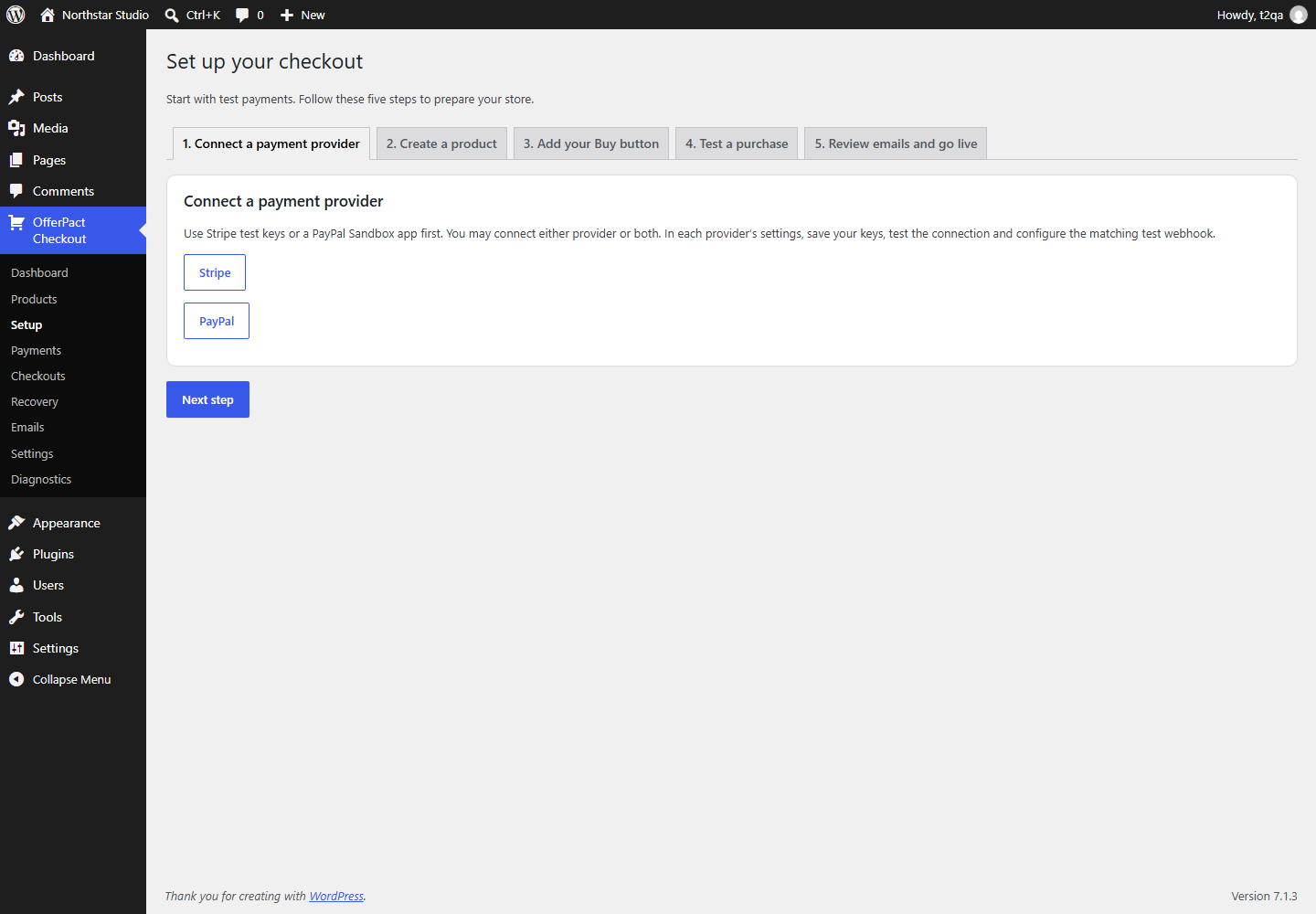
3. Connect one test provider
Stripe: OfferPact Checkout → Settings → Stripe. Enable Stripe, select Test (sandbox), enter the test publishable key and test secret key, Save, then Test connection. Use a secret/restricted key with the required API permissions; do not paste keys into support messages. Copy the displayed test webhook URL and use the registration control or Stripe Dashboard; store its signing secret. See Stripe setup.
PayPal: Settings → PayPal. Enable PayPal, select Test (sandbox), enter the Sandbox REST app Client ID and Secret, Save and Test connection. Register the displayed test webhook with that sandbox app and save its Webhook ID. The merchant app belongs to a Business sandbox account; payment approval uses a separate Personal sandbox buyer. See PayPal setup.
One provider is enough for your first test. Under Settings → General, if tests are limited to administrators, click Start test session and keep using the same site hostname while logged in. Every provider used in this test must be in Test mode.
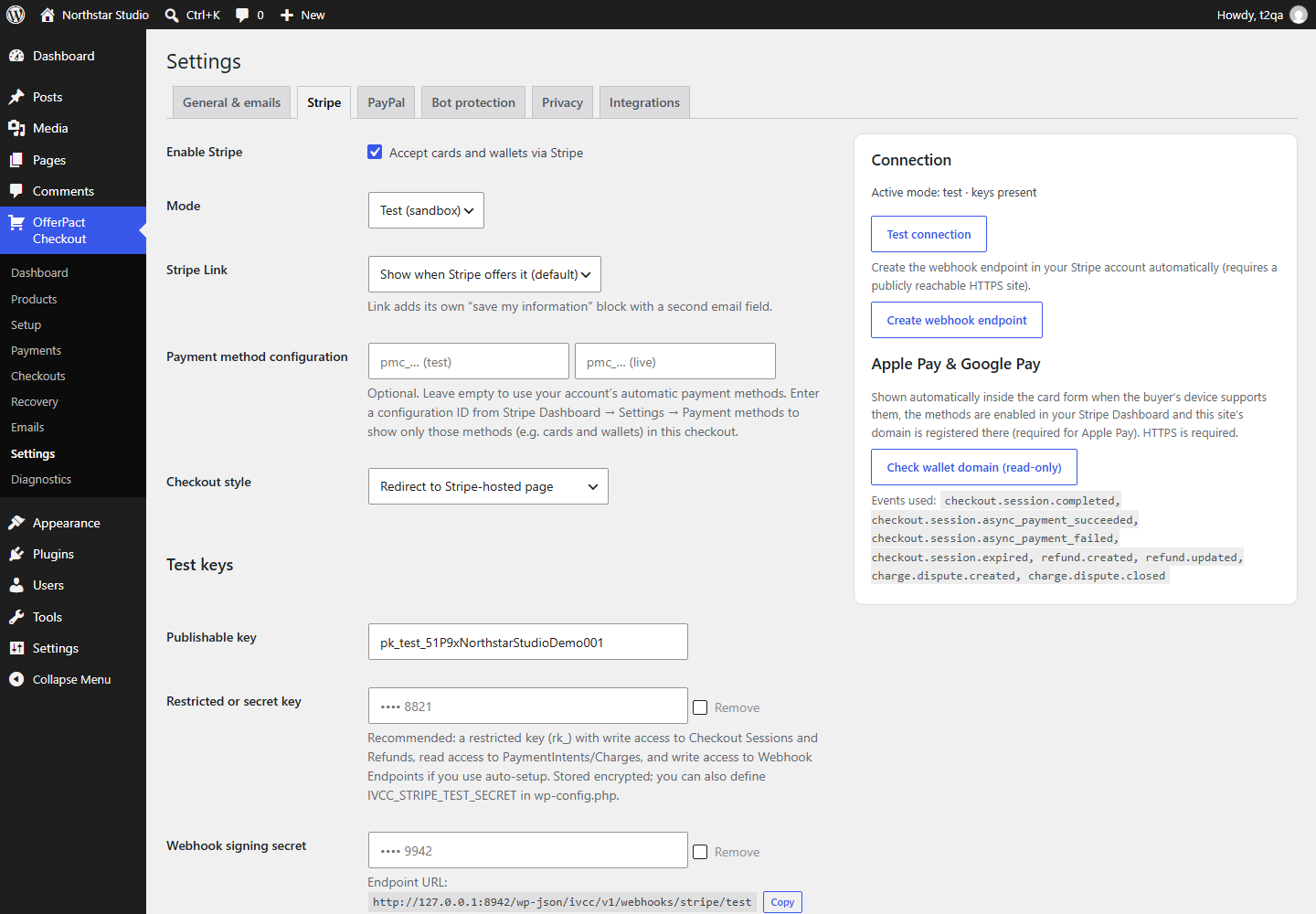
4. Create one product
- OfferPact Checkout → Products → Add product. Enter a name, fixed price and currency.
- Select the connected payment method, choose a clear confirmation message and Publish. A payment confirmation does not automatically deliver a file, licence or subscription.
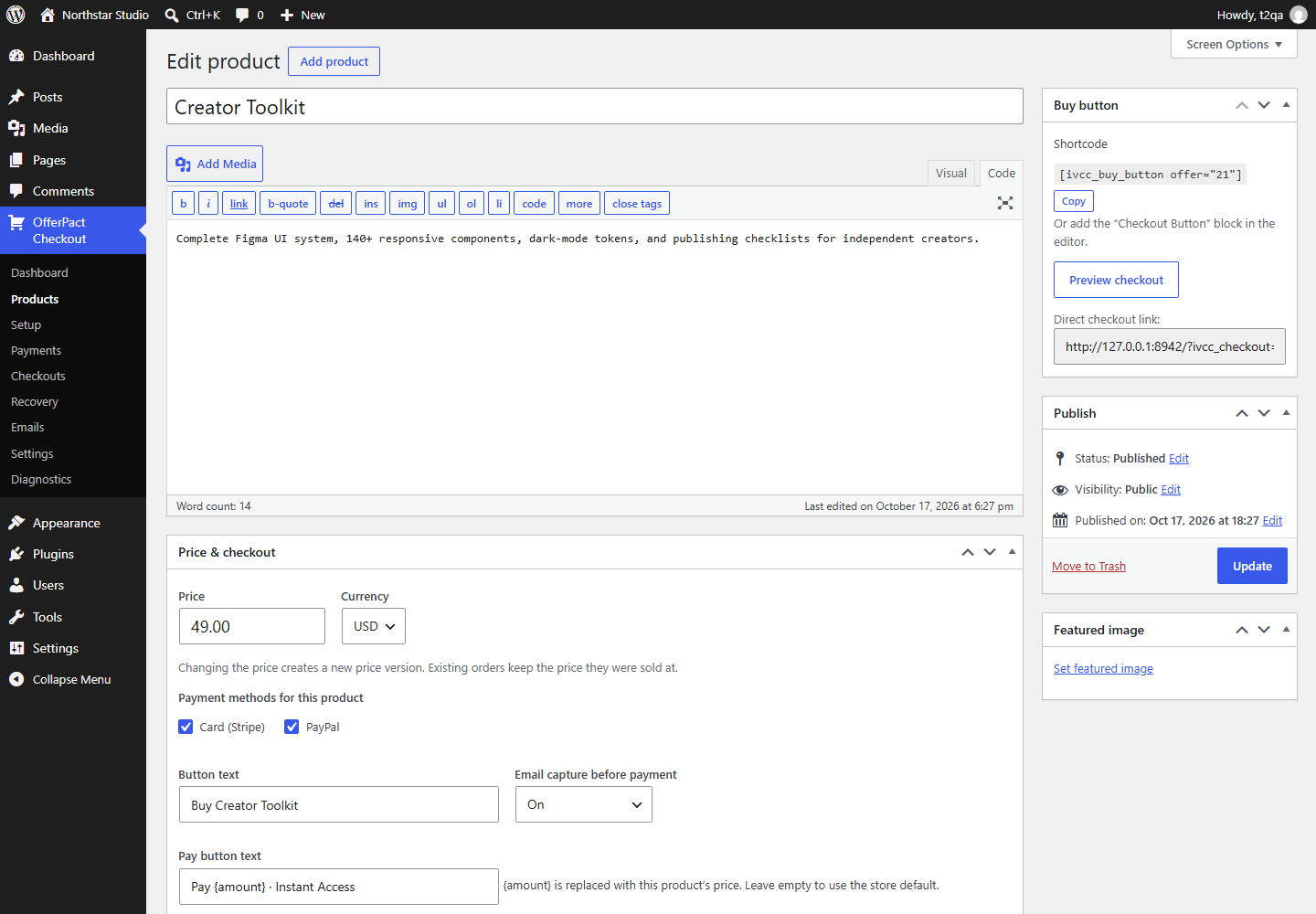
5. Add a buy button
Copy the product’s Buy button shortcode, for example [ivcc_buy_button offer="123"], into a Shortcode block on a normal page, or add the Checkout Button block and select your product. Publish the page and open it. The number must be your actual product ID, not the example 123.
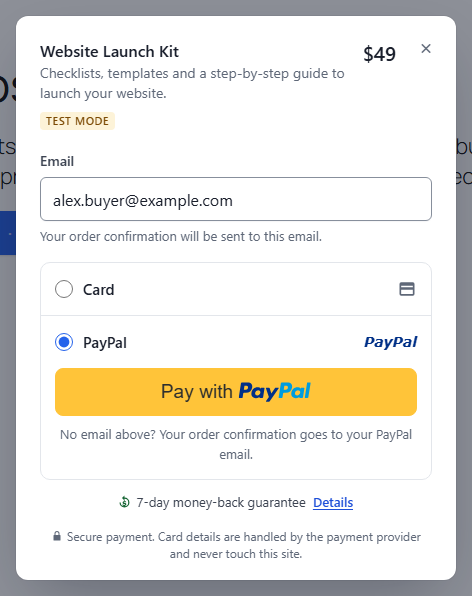
6. Complete a sandbox purchase
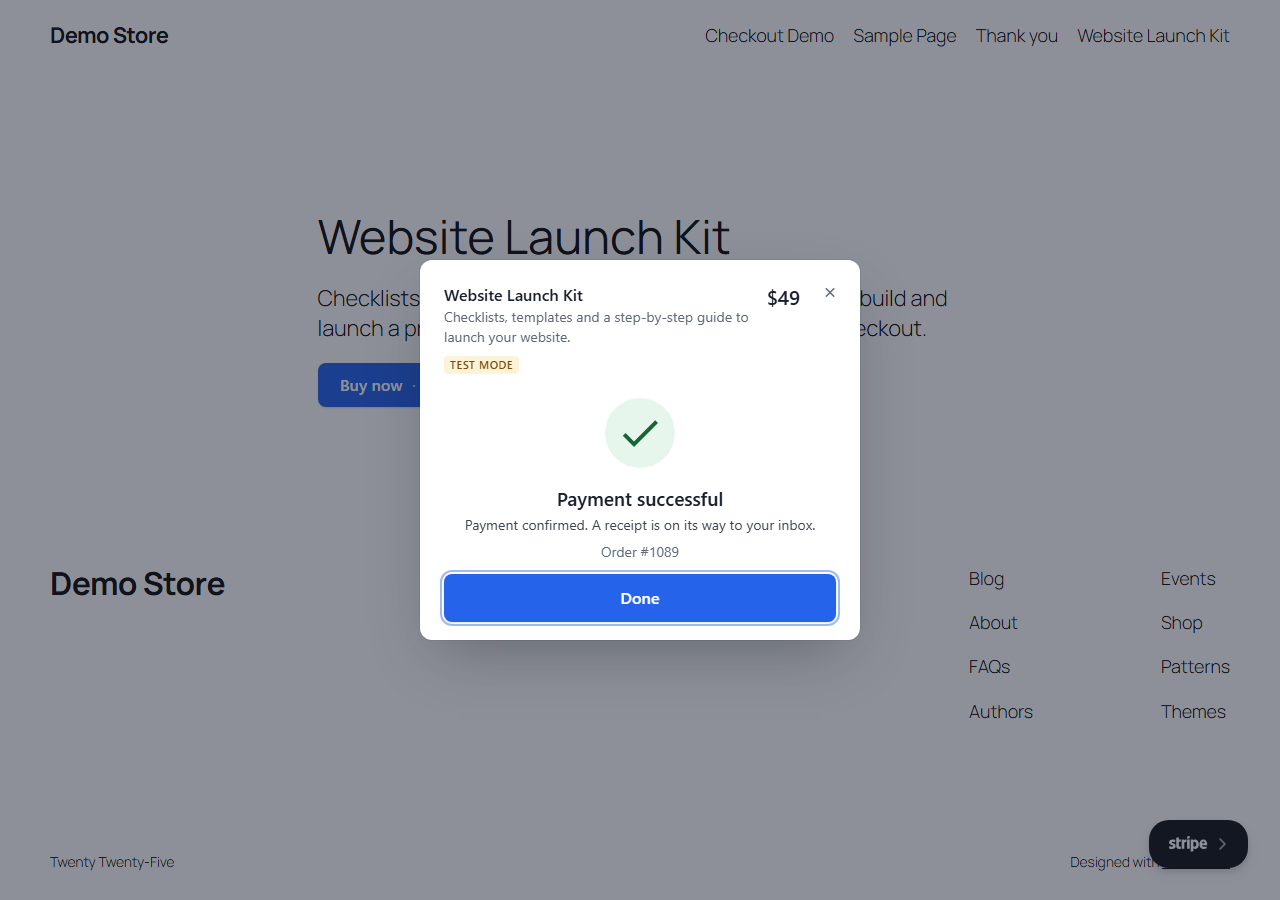
- Open the popup and confirm the Test mode badge, correct price and currency. Enter a test email address.
- Stripe: use the provider’s test card 4242 4242 4242 4242, a future expiry and any test CVC. PayPal: click the official PayPal button and approve with your Personal sandbox buyer.
- Wait for Payment successful and check OfferPact Checkout → Payments for the same order, provider, amount and paid status. A provider connection test alone is not a purchase test.
- Check the receipt in your local mail catcher or configured test inbox. WordPress accepting a message does not prove inbox delivery.
7. Review before going live
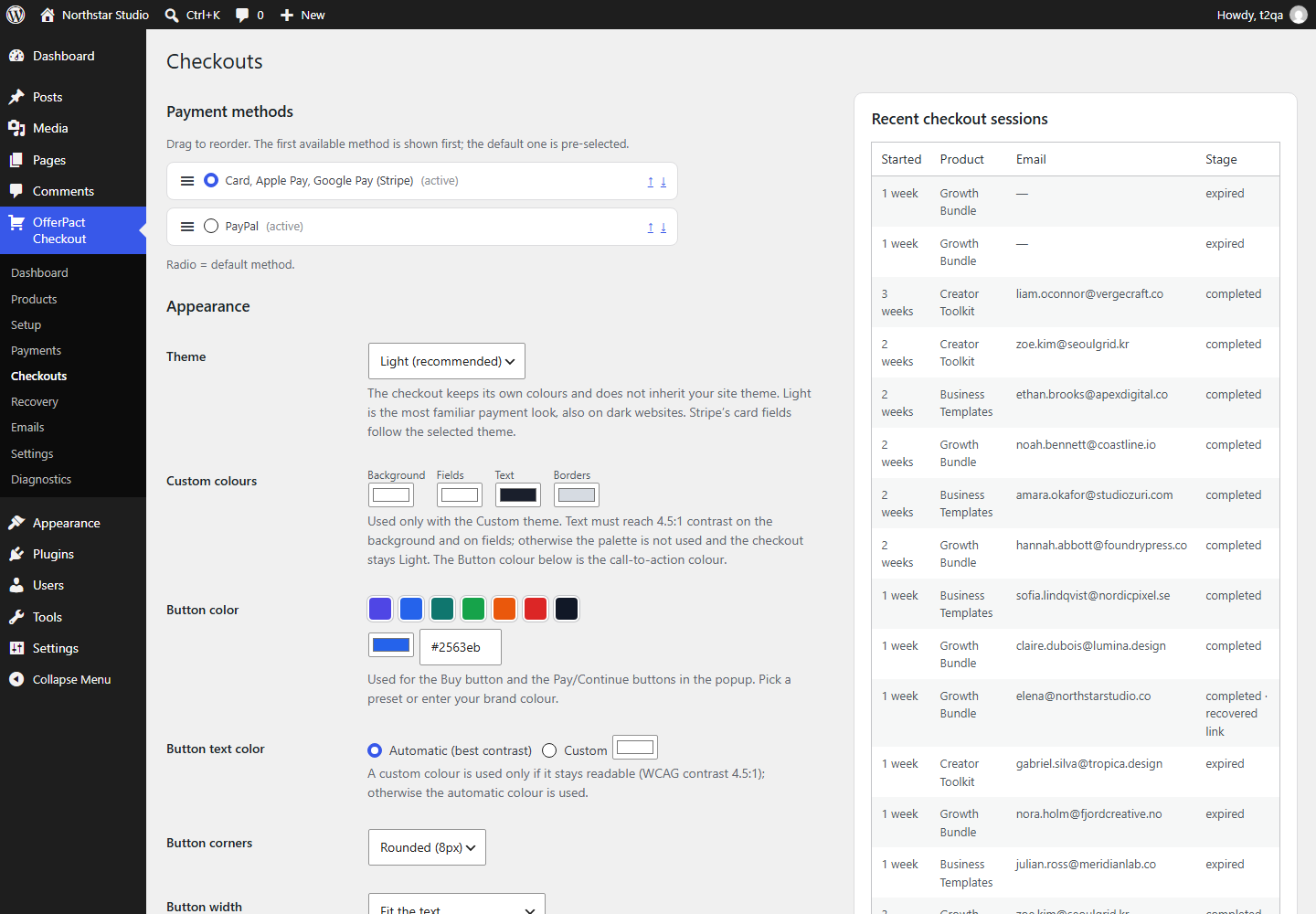
Set your business name, genuine support contact, confirmation text and policies. Keep recovery off until you configure its basis and consent/notice under OfferPact Checkout → Recovery. Optional marketing consent is separate and off by default. Verify SMTP delivery and reliable cron before relying on reminders. Configure live credentials and matching live webhooks separately, then switch each enabled provider deliberately. Do not treat sandbox success as evidence of live wallet availability. Review troubleshooting and security and privacy.
If the first test fails
No button: confirm the page is published, the shortcode uses your product ID and the product is published. No payment method: check provider enablement, mode, credentials and administrator test session. Wrong mode: stop and correct settings before payment. 404/403 REST requests: inspect permalinks, security plugins and host firewall. Stale popup: purge cache and exclude checkout REST responses and return/unsubscribe URLs from caching. Pending order: check provider status, webhook log and the queue; do not repeat a payment blindly. Missing email: inspect Emails/logs, SMTP logs and spam; see troubleshooting.
IVIA CODE newsletter
Get more practical WordPress payment setup tips
Get practical checkout tips, conversion ideas, and updates on tools that help WordPress businesses sell more effectively.