
PRO feature OfferPact Checkout Pro 1.0.4 · Requires the Free plugin
FlowNudge Automations
FlowNudge is the customer-journey engine in OfferPact Checkout Pro. It turns a verified purchase into a planned sequence of emails — for example a thank-you note, a how-to tip a few days later, and an offer for your next product — and stops the sequence as soon as the customer buys that product or unsubscribes. Everything runs inside your WordPress site.
FlowNudge is for customers who are already buying from you and have agreed to receive marketing email. It is different from the Free plugin’s abandoned-checkout reminders, which remind people who did not finish a one-time checkout.
What problems it solves
- No follow-up after the sale. Send onboarding, tips or a review request at the right time, automatically.
- Missed repeat sales. Offer an upgrade or a related product, then stop immediately when the customer buys it.
- Manual email work. Delays, branches and exits run on a queue; you check results in one log.
Requirements
- OfferPact Checkout Free 1.0.4+ and Pro 1.0.4 with an active Pro license. If the license is inactive, FlowNudge pauses email delivery and holds due tasks.
- Reliable WordPress email delivery (an SMTP plugin) or a Brevo account.
- A marketing opt-in on your checkout, so customers can give permission (step 1).
- Reliable scheduled tasks. WP-Cron runs only when the site has traffic; for accurate delays, run cron every minute from your server (see Troubleshooting — Cron, Email and Cache).
Where to find it
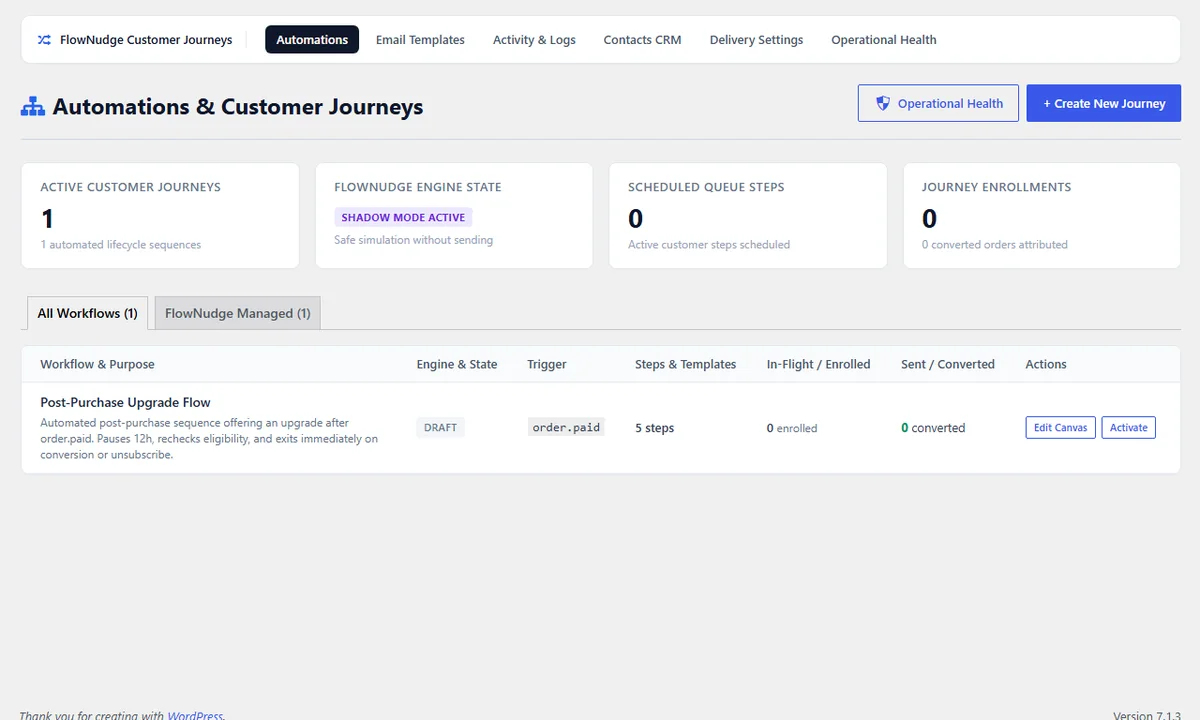
Go to OfferPact Checkout → FlowNudge. The tabs are Automations, Email Templates, Activity & Logs, Contacts CRM, Delivery Settings and Operational Health. Contacts and CSV import are also listed under Customers & Recovery.
How it works
Triggers
Each automation starts from one Trigger Event:
| Trigger | When it fires in Pro 1.0.4 |
|---|---|
order.paid (Successful Customer Purchase) | Automatically, when OfferPact Checkout verifies a live one-time payment. |
contact.imported (Cohort Activation) | When you import contacts from a CSV file (Customers & Recovery → Import Contacts). It never triggers purchase journeys. |
subscription.started (New Subscription) | Only when an external system sends this event to the FlowNudge REST endpoint. Pro’s own subscriptions do not send it in this release. |
contact.created (New Contact) | Only when an external system sends this event to the REST endpoint. |
Payments made in Stripe test mode or PayPal Sandbox are recorded, but they never enroll contacts or change consent.
Steps
In the journey editor, Add Step offers four step types:
- Send Email — sends one email template.
- Wait / Delay — pauses for a number of minutes, hours or days.
- If / Else Branch — checks one field and continues on a YES or NO path. Fields:
has_purchased_product,consent_status,order_status,amountandtag; operators: Equals, Not Equals and Contains. - Exit Flow — ends the journey with a reason: completed, converted, window_expired or unsubscribed.
Conversion & Exit Gates
An exit gate ends an active journey immediately when the contact buys a target product. Use it so customers never receive an offer for something they already bought.
Product references
Branches and exit gates identify an OfferPact product by its Integration reference (SKU), set in the product’s Price & checkout box. If a product has no SKU, its reference is ivcc_offer_ followed by the product ID (for example ivcc_offer_42). Setting a short SKU such as photo-course makes journeys easier to read.
Marketing permission is required
Every email in a FlowNudge journey is treated as marketing. FlowNudge sends it only to contacts whose consent status is subscribed and who are not unsubscribed or suppressed. Other contacts are skipped, and the log says “Skipped email: contact lacks marketing consent or is unsubscribed.”
A purchase alone does not make a customer subscribed. A buyer becomes subscribed only by ticking your marketing checkbox in the same checkout. Turn it on in Products & Checkouts → Checkout Email & Consent → Marketing Opt-In → Show a marketing email checkbox. Leave the initial state Unchecked: a buyer who leaves a pre-checked box unchanged is recorded as “pre-selected”, not as subscribed.
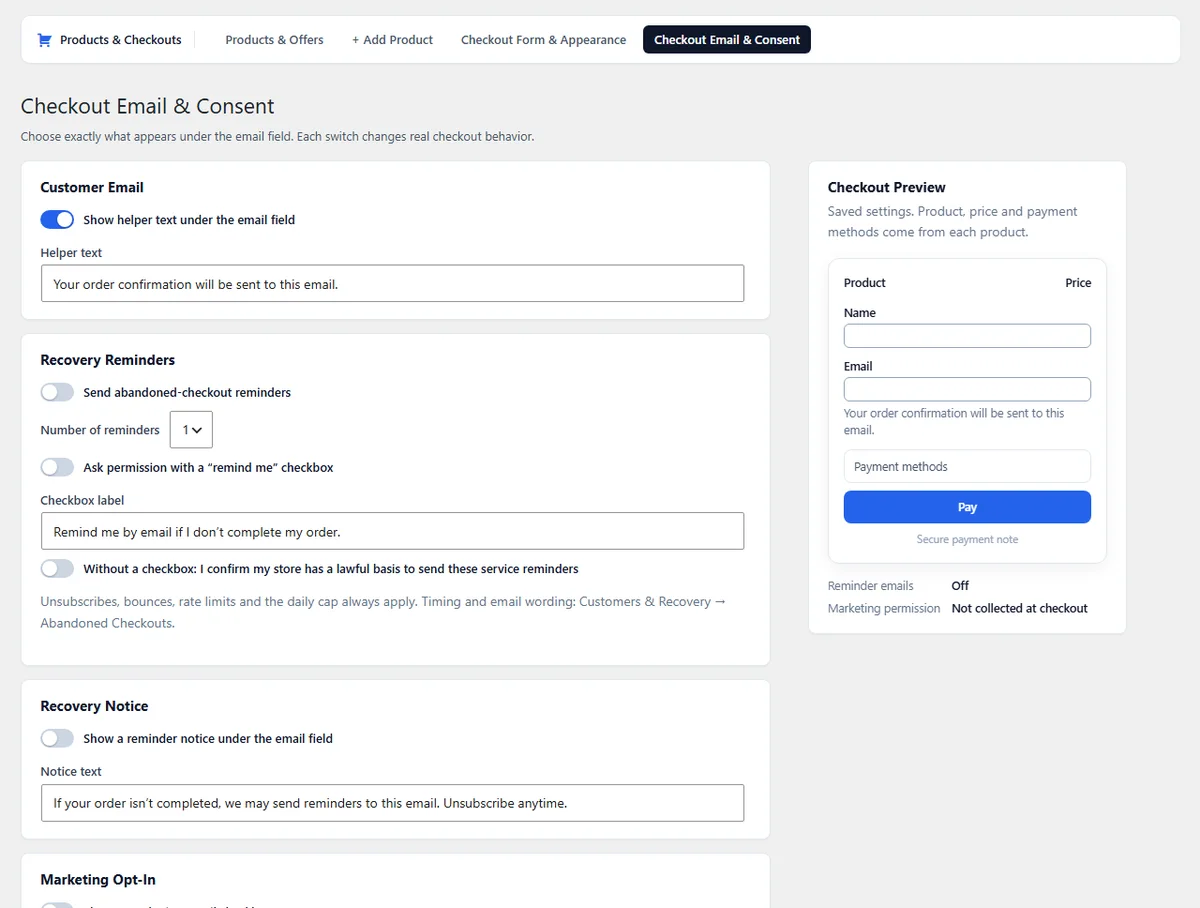
Reminder permission for abandoned checkouts is a separate purpose and never counts as marketing permission. See Email Capture and Consent.
1. Set up email delivery
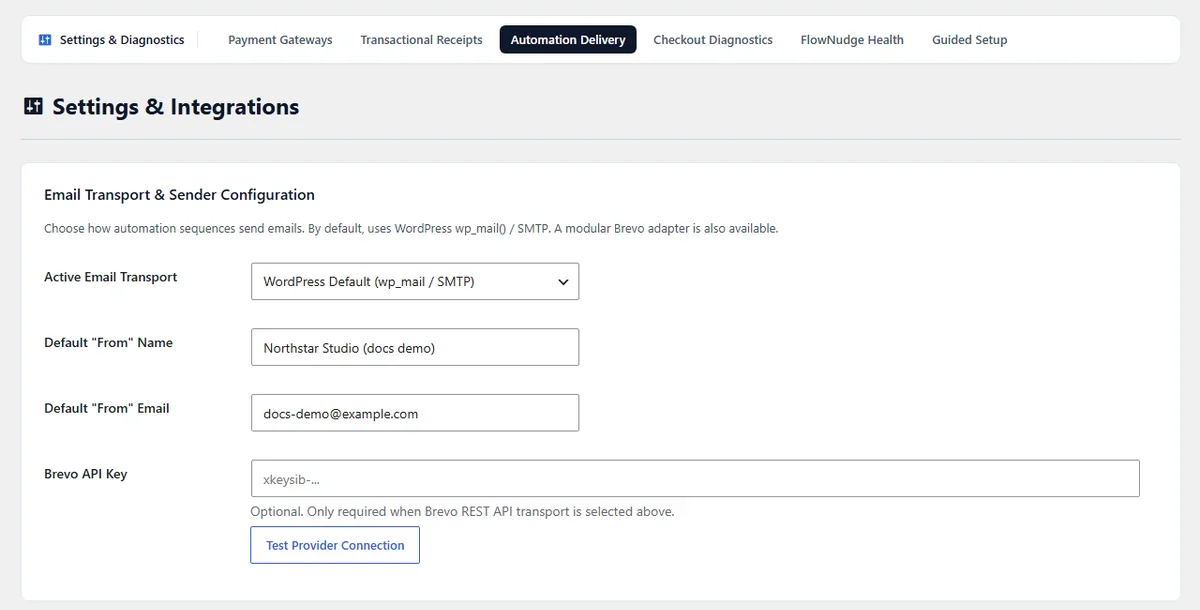
- Go to FlowNudge → Delivery Settings (it opens Settings & Diagnostics → Automation Delivery).
- Choose Active Email Transport: WordPress Default (wp_mail / SMTP) uses your site’s mail setup; Brevo REST API v3 sends through Brevo with your API key.
- Enter Default “From” Name and Default “From” Email. Use an address on your own domain that your mail service is allowed to send from.
- For Brevo, paste the API key and click Test Provider Connection.
- Click Save All Settings.
2. Prepare the email templates
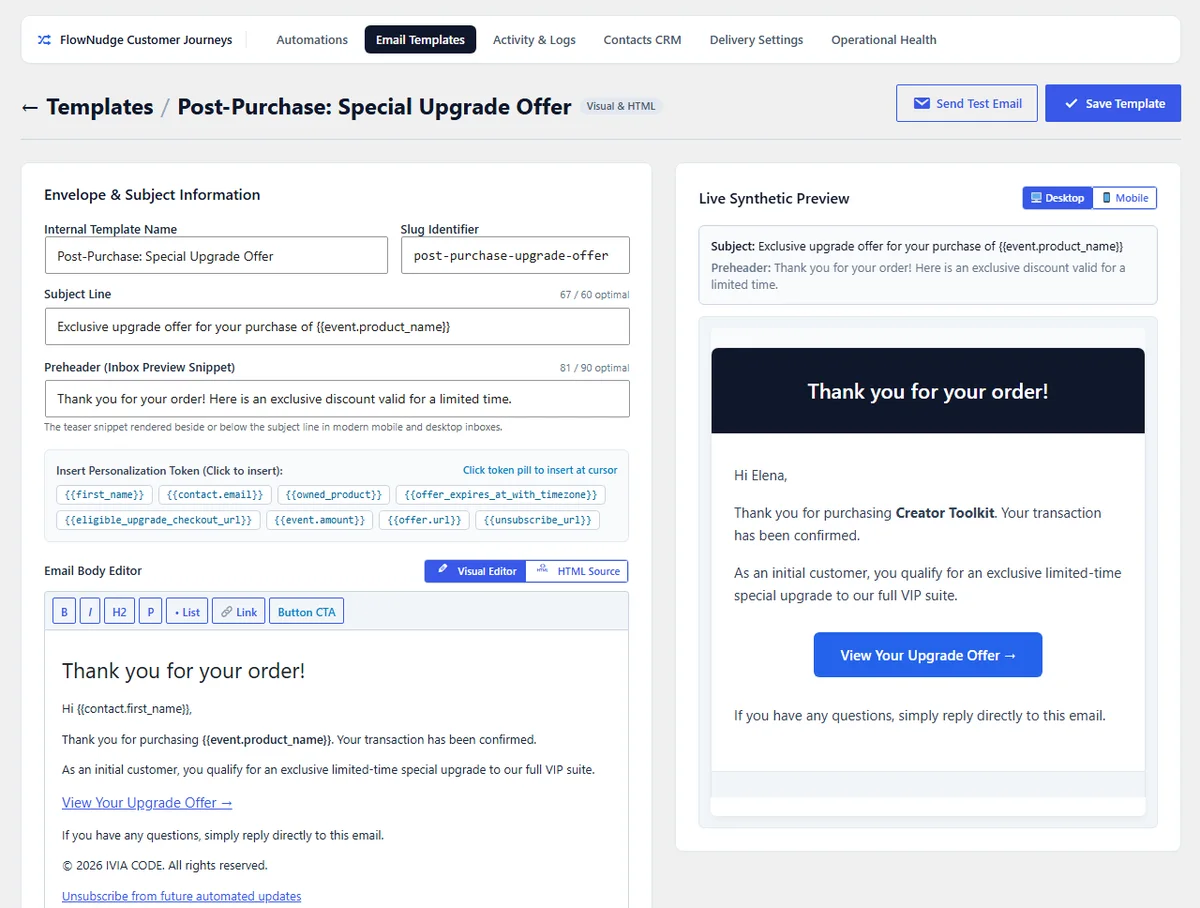
- Go to FlowNudge → Email Templates and click + New Custom Template, or Edit an existing one.
- Fill in Internal Template Name, Subject Line and Preheader.
- Write the body in the Visual Editor or HTML Source, and add a Plain Text Fallback Version.
- Click a token to personalize the email, for example
{{first_name}}. Include an unsubscribe link in the body with{{unsubscribe_url}}. - Check the Live Synthetic Preview, then click Save Email Template.
Example: offer a follow-up product three days after a purchase
Goal: three days after a verified purchase, email opted-in customers an offer for your one-time “Advanced Lighting Workshop”. Customers who have already bought the workshop receive nothing. The quickest way is to adapt the sample journey that ships with Pro.
Before you start
- Set the SKU of the workshop product to
lighting-workshop(Price & checkout → Integration reference (SKU)). - Turn on the unchecked marketing checkbox (see above).
- In Email Templates, edit “Post-Purchase: Upgrade Reminder (12h)”: rewrite the subject and body for your workshop offer and add
{{unsubscribe_url}}.
Adapt the journey
- Go to FlowNudge → Automations and click Edit Canvas on Post-Purchase Upgrade Flow.
- In Journey Settings, change the Journey Name, keep the Trigger Event
order.paid (Successful Customer Purchase)and keep Publishing Status on Draft. - Delete Step 1: Send Initial Upgrade Offer (click it, then Delete Step), so nothing is sent right after the purchase.
- Click the Wait step and set it to 3 Days.
- Click the If / Else step and set its value to
lighting-workshop. Leave the routing as it is: YES goes to the exit stepstep_exit_converted, NO goes to the email stepstep_4. - Click the remaining Send Email step and check that it uses the template you edited.
- So that customers who only received the email are not counted as converted, click Add Step → Exit Flow, choose the reason completed, and move it up with the arrow so it sits directly after the email step.
- Under Conversion & Exit Gates, remove the sample gates and click Add Conversion Exit Gate; enter
lighting-workshop. - Click Save Automation.
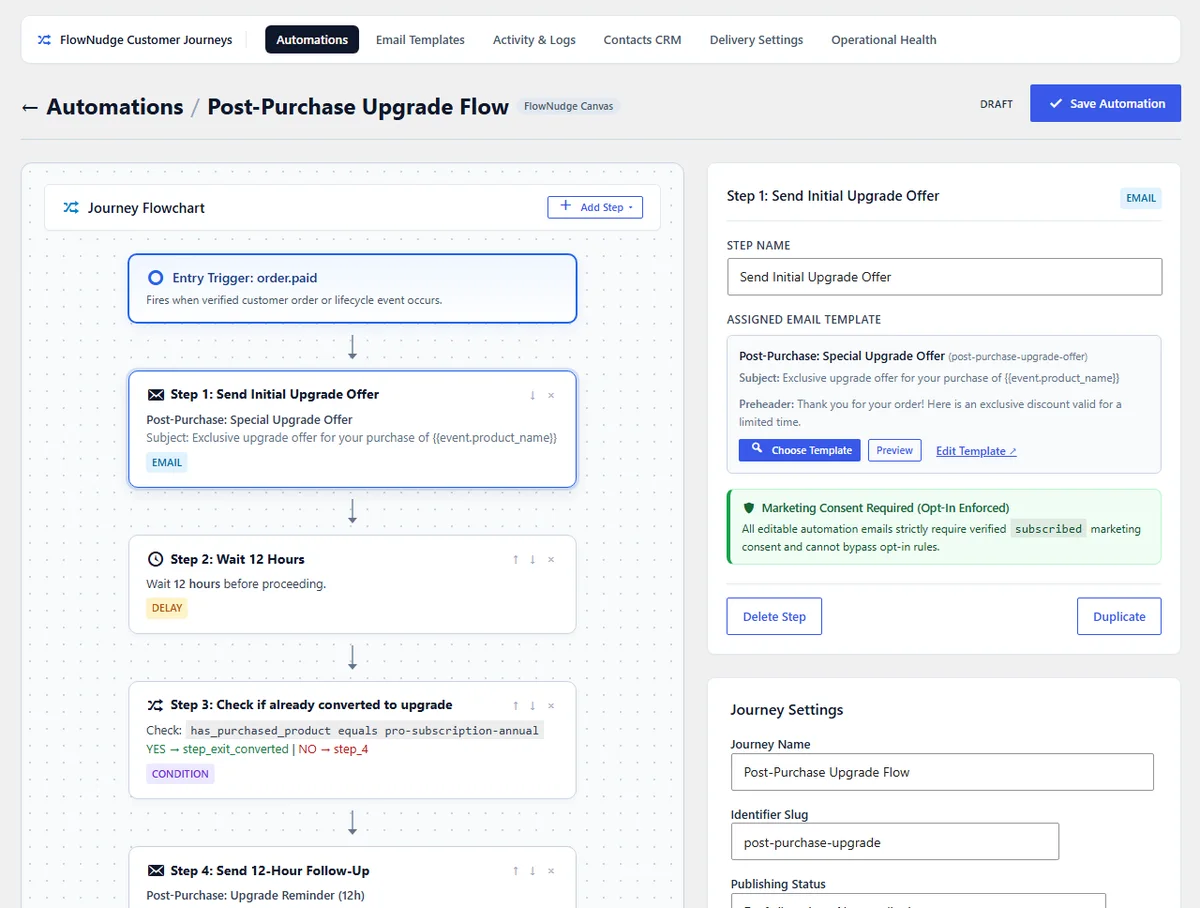
Branch routing uses step IDs typed into the YES and NO fields. If an ID does not exist, the journey simply continues with the next step. The sample journey uses readable IDs, which is why adapting it is easier than building branches from scratch.
What will happen
Every verified live one-time purchase enrolls the buyer once (the order.paid trigger is not limited to one product). The journey waits three days. Buyers who already own the workshop leave through the YES path; everyone else gets the offer email — but only if they are subscribed to marketing. If someone buys the workshop during the wait, the exit gate ends their journey immediately. Customers without marketing permission are logged as skipped and receive nothing.
3. Test safely before you activate
- Dry run. In the journey editor, enter a Sample Contact ID (from Contacts CRM) under Dry-Run Simulation and click Run Dry-Run Trace. The trace shows each step, the consent check and whether an email would be sent. Nothing is sent.
- Test email. In the template editor, click Send Test Email to see the real message in your inbox. Use your own address; FlowNudge refuses addresses that belong to a contact without marketing consent.
- Staging sites. On a site whose WordPress environment type is not
production, FlowNudge simulates sends instead of emailing anyone. The Automations screen shows Shadow Mode Active in that case and Live Sending Active on production. - When you are satisfied, set Publishing Status to Active (Listening & Processing) and save, or click Activate in the Automations list.
Test-mode payments do not enroll contacts, so use the dry run rather than a test purchase to check a journey.
4. Check results
FlowNudge → Activity & Logs lists every step with its time, automation, contact, step number and outcome. Filter by Success, Failed, Unknown (Ambiguous Delivery) or Skipped (Consent/Exit). Process Pending Queue Now runs due steps immediately. Failed tasks can be retried with Retry Task once the cause is fixed.
The Automations list shows enrolled and converted counts for each journey. “Sent” means your mail transport accepted the message, not that it reached the inbox.
Duplicate protection
- The same purchase event enrolls a contact only once, even if it is delivered again.
- A contact cannot be in the same active journey twice.
- Each email step is logged per enrollment, so retries and overlapping cron runs do not send it again.
Unsubscribes and suppression
Every FlowNudge email carries a one-click unsubscribe header, and {{unsubscribe_url}} adds a visible link. When a contact unsubscribes, their active journeys end. One opt-out applies across checkout reminders, FlowNudge journeys and Sticky Bars on the same site, and an unsubscribed or suppressed contact is never re-subscribed by a later purchase. WordPress’s Export Personal Data and Erase Personal Data tools include FlowNudge data.
If the Pro license lapses
Email delivery pauses and due tasks are held. After renewal, held tasks are not replayed automatically: review them in Activity & Logs → Queue Tasks Requiring Review and click Release Held Task one at a time. Each release re-checks enrollment, consent and suppression.
Limitations in Pro 1.0.4
- Journeys are step lists with branches, not a free-form drag-and-drop canvas.
- One trigger event per journey; product filtering is done with an If / Else step.
- Pro subscriptions and test-mode payments do not start journeys.
- FlowNudge does not recover abandoned checkouts; that is the Free reminder feature.
- All journey emails require marketing consent; there is no transactional bypass.
Troubleshooting
Nobody is enrolled after a purchase
Check that the journey is Active, that the trigger is order.paid, and that the payment was made in live mode. Test-mode payments never enroll contacts.
Contacts are enrolled but emails are skipped
The contacts are not subscribed to marketing. Check their consent status in Contacts CRM and make sure your checkout shows the unchecked marketing checkbox.
Emails are late
Delays depend on scheduled tasks. Set up a server cron job every minute, or use Process Pending Queue Now to check.
The log says “simulated”
The site is not a production environment, so FlowNudge did not email anyone. This is intentional on staging and local copies.
A branch on a product never matches
Use the product’s SKU exactly as saved, or ivcc_offer_ plus the product ID if it has no SKU.
More: Pro Troubleshooting.
Related guides
IVIA CODE newsletter
Stay up to date with new OfferPact features and advanced WordPress checkout techniques
Occasional emails about new OfferPact features, practical checkout tips and conversion ideas for WordPress businesses.