
PRO feature OfferPact Checkout Pro 1.0.4 · Requires the Free plugin
Recurring Subscriptions with Stripe and PayPal
OfferPact Checkout Pro lets you sell monthly or yearly subscriptions from your WordPress site. Billing is handled by your own Stripe Billing or PayPal Subscriptions account: the provider charges renewals on its schedule, and Pro records each change only after re-reading it from the provider. Pro never charges a customer on its own.
Use subscriptions for memberships, coaching programs, software or content access — anything with one fixed recurring price. Your existing one-time products keep using the Free checkout.
Requirements
- OfferPact Checkout Free 1.0.4+ and Pro 1.0.4 with an active Pro license. Without an active license, new subscription checkouts are paused.
- Stripe and/or PayPal connected in the Free plugin under OfferPact Checkout → Settings & Diagnostics (Stripe setup, PayPal setup). Pro reuses these API keys; it does not ask for them again.
- A publicly reachable HTTPS site, so Stripe and PayPal can deliver webhooks.
- Working WordPress email, so subscribers can receive their secure manage link.
Start in test mode. Subscription billing works in Stripe test mode and PayPal Sandbox out of the box. Live subscription billing stays off until you deliberately enable it (step 7). One-time payments are not affected by this setting.
1. Publish a manage-subscription page
Subscribers use this page to view, update or cancel their subscription. It is required before you can sell.
- Go to Pages → Add New Page, for example “Manage Subscription”.
- Add a Shortcode block containing
The link is valid for 30 minutes. You can also cancel in your PayPal account: Settings → Payments → Manage automatic payments.
← Back to IVIA CODE - Publish the page.
On this page a subscriber enters the email they subscribed with and receives a secure link, valid for 30 minutes, to see the status, amount, billing period and next payment date, and to cancel renewal.
2. Configure the Subscriptions settings
Go to OfferPact Checkout → Subscriptions and open the Settings tab.
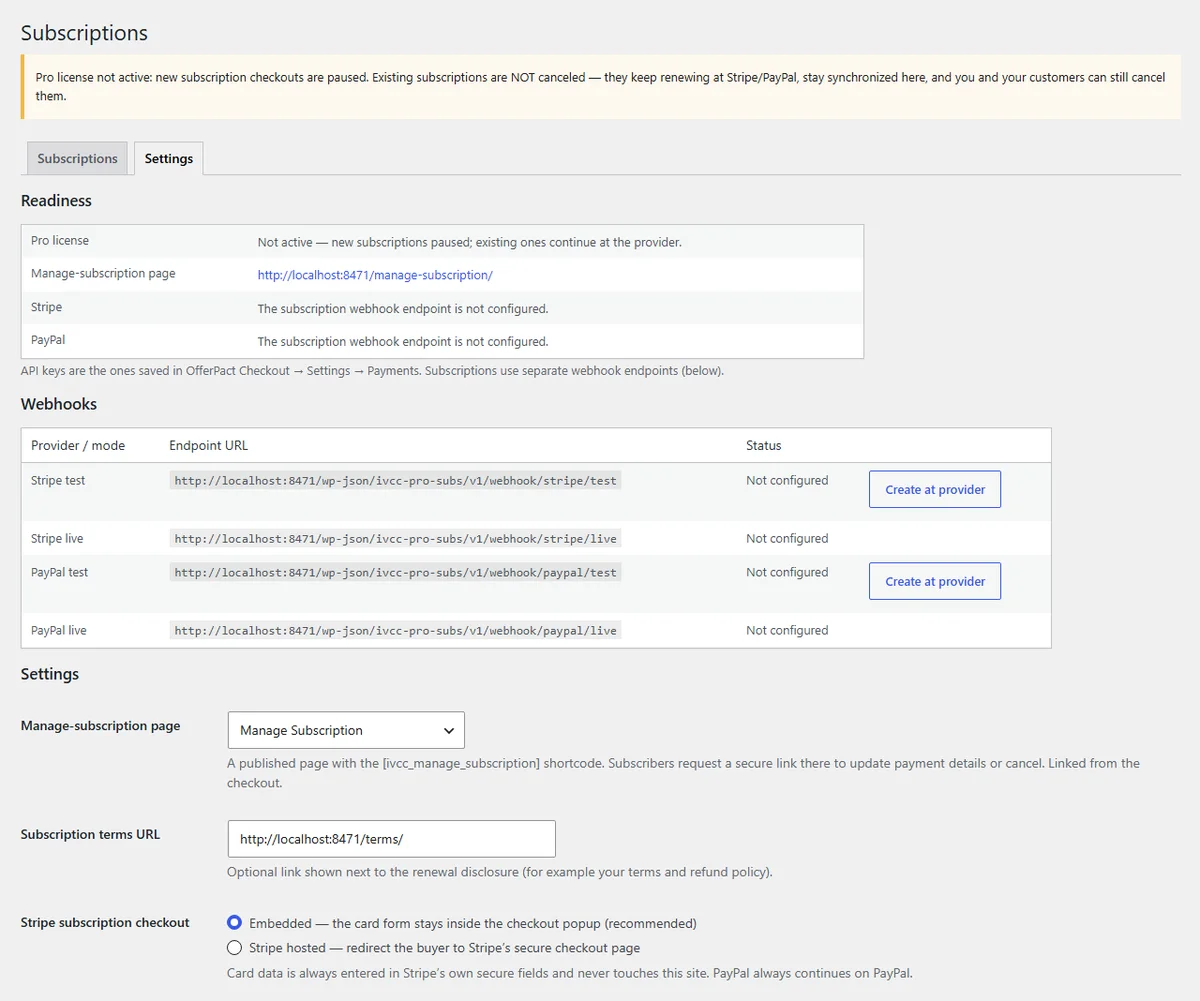
- Manage-subscription page — choose the page from step 1.
- Subscription terms URL (optional) — a link shown next to the renewal disclosure, such as your terms and refund policy.
- Stripe subscription checkout — Embedded keeps Stripe’s secure card fields inside the checkout popup (recommended); Stripe hosted redirects the buyer to Stripe’s checkout page. PayPal always continues on PayPal.
- Stripe Customer Portal — lets Stripe subscribers open Stripe’s hosted portal to update their card, view invoices or cancel. Turn the portal on in your Stripe Dashboard first, then use Check Stripe Customer Portal setup.
Click Save settings.
3. Create the subscription webhooks
Subscriptions use their own webhook endpoints, separate from the one-time payment webhooks you created in the Free plugin. The Webhooks table lists one endpoint per provider and mode, for example https://your-site.com/wp-json/ivcc-pro-subs/v1/webhook/stripe/test.
Automatic (recommended): click Create at provider in the row for Stripe test or PayPal test. Pro creates the endpoint in your account with the required events and saves its signing secret or webhook ID. The status changes to Configured.
Manual: create the endpoint yourself and paste the value into the Settings form:
- Stripe — in the Stripe Dashboard, add an endpoint with the URL from the table and these events:
checkout.session.completed,checkout.session.expired,customer.subscription.created,customer.subscription.updated,customer.subscription.deleted,customer.subscription.paused,customer.subscription.resumed,invoice.paid,invoice.payment_failed,invoice.payment_action_required. Paste its signing secret (it starts withwhsec_) into Stripe test webhook signing secret. - PayPal — in your PayPal app, add a webhook with the URL from the table and these events:
BILLING.SUBSCRIPTION.ACTIVATED,BILLING.SUBSCRIPTION.UPDATED,BILLING.SUBSCRIPTION.RE-ACTIVATED,BILLING.SUBSCRIPTION.SUSPENDED,BILLING.SUBSCRIPTION.CANCELLED,BILLING.SUBSCRIPTION.EXPIRED,BILLING.SUBSCRIPTION.PAYMENT.FAILED,PAYMENT.SALE.COMPLETED,PAYMENT.SALE.REFUNDED,PAYMENT.SALE.REVERSED. Paste its ID into PayPal test webhook ID.
When the Readiness table shows Ready (test) for a provider, you can sell through it.
4. Create a subscription product
- Go to OfferPact Checkout → Products & Checkouts → Add Product and enter the product name.
- In Price & checkout, set the Price and Currency. This is the recurring amount charged each period.
- In Billing (Pro), choose Subscription (automatic renewal).
- Choose the Billing interval: Monthly or Yearly.
- Under Payment providers for this subscription, tick Stripe, PayPal or both. Each provider shows whether it is ready.
- Click Publish.
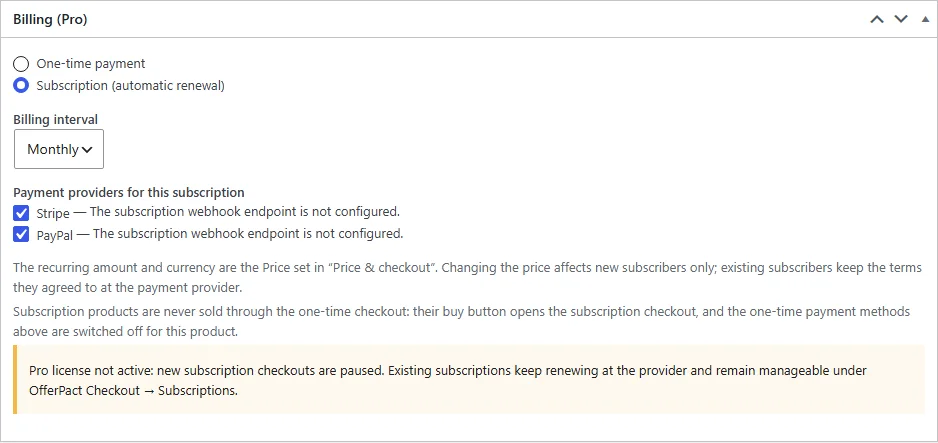
A subscription product is never sold through the one-time checkout: its one-time payment methods are switched off automatically. Changing the price later affects new subscribers only; existing subscribers keep the terms they agreed to at the payment provider.
5. Add the buy button
Use the same button you use for one-time products: copy the shortcode from the product’s Buy button box into a Shortcode block, or add the Checkout Button block and choose the product. For a subscription product, Pro opens the subscription checkout automatically. See Products and Payment Buttons.
What your customer sees
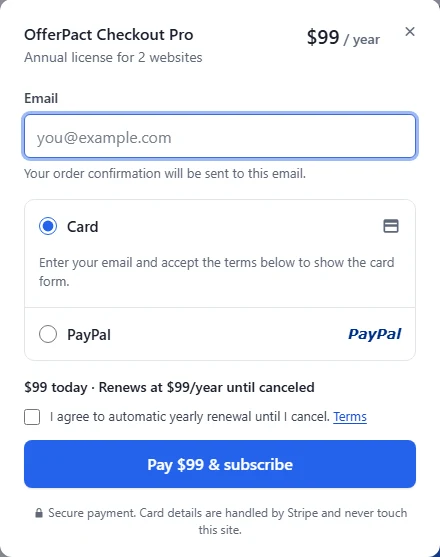
- The checkout asks for an email; the payment provider collects billing details.
- A billing summary is generated from the product, for example “$19 today · Renews at $19/month until canceled”.
- The buyer must tick an unchecked automatic-renewal agreement before paying. Your terms URL appears next to it.
- The button matches the method: “Pay $19 & subscribe” (embedded Stripe card), “Continue to Stripe” (hosted Stripe) or “Continue with PayPal”.
6. Run a test subscription
- With Stripe in test mode (or PayPal in Sandbox), open the page with your button in a private browser window.
- Complete the checkout with a Stripe test card or a PayPal Sandbox buyer account. Never use a real card in test mode.
- Open OfferPact Checkout → Subscriptions. The new row shows the customer, product, amount, provider, provider subscription ID and status. Test-mode records carry a test label.
- Open the subscription. Check that Initial payment verified says Yes and that the first payment appears under Payments (provider-verified).
- Test a renewal with your provider’s test tools, for example a Stripe test clock, and confirm the renewal appears as a new payment.
- Test cancellation from your manage-subscription page and confirm the status in WordPress.
A checkout that was started but not paid stays Pending payment. It is not a subscription and does not appear as active.
7. Go live
When the test subscription, a renewal and a cancellation all work:
- Add
define( 'IVCC_PRO_SUBSCRIPTIONS_ALLOW_LIVE', true );towp-config.php. - Switch the payment method to Live in Settings & Diagnostics and enter your live API keys.
- Create the live subscription webhook on the Subscriptions → Settings tab.
- Check that the Readiness table shows Ready (live).
If any step is missing, the Readiness table names it, for example “Live subscription billing is not enabled for this release (test mode only).”
Subscription statuses
| Status | Meaning |
|---|---|
| Pending payment | Checkout started; the provider has not confirmed a payment. |
| Active | The provider confirmed the subscription and its payment. |
| Past due / Unpaid | A renewal payment failed. The provider retries according to its own settings. |
| Suspended | The subscription is paused at the provider. |
| Canceled | No further payments will be taken. |
| Expired (not subscribed) | The checkout was never completed. |
| Needs review | The provider’s data does not match the agreed terms (for example amount, currency, interval or account). Pro does not treat it as active; check it in the provider dashboard. |
Status, payments and next billing dates are read from Stripe or PayPal through webhooks and an hourly re-check. A dash in Next billing (provider) means the provider has not confirmed a date yet. Use Refresh from provider on a subscription to re-read it immediately.
Renewals and failed payments
Renewals are charged by Stripe or PayPal, not by WordPress. Retry schedules and customer emails about failed payments are controlled by your provider’s settings (Stripe Billing settings, or the payment preferences of the PayPal plan). Pro does not send its own failed-payment emails; it shows the result as Past due, Unpaid or Suspended.
Cancellations and refunds
- You (merchant): open the subscription in OfferPact Checkout → Subscriptions. For Stripe, choose Cancel at period end or Cancel immediately. For PayPal, choose Cancel subscription at PayPal, which stops further payments.
- Your customer: on the manage-subscription page, the customer requests a secure link and clicks Cancel renewal. Stripe subscribers can also use Update card & view invoices when the Customer Portal is enabled. PayPal subscribers can also cancel in their PayPal account under Settings → Payments → Manage automatic payments.
- Refunds are issued in the Stripe or PayPal dashboard. The subscription page then shows the refund automatically.
Stripe and PayPal differences
| Stripe | PayPal | |
|---|---|---|
| Payment entry | Card fields inside the popup (default) or Stripe’s hosted page | The buyer approves on PayPal |
| Plans | The price is sent with each checkout; no plan setup needed | Pro finds or creates a matching active plan in your PayPal account |
| Webhook setting | Signing secret (whsec_…) | Webhook ID |
| Merchant cancellation | At period end or immediately | Cancel at PayPal (stops further payments) |
| Customer self-service | Manage page, plus optional Stripe Customer Portal | Manage page, plus the buyer’s PayPal account |
What happens if the Pro license lapses
New subscription checkouts pause. Existing subscriptions are not canceled: they keep renewing at Stripe or PayPal, webhooks and re-checks continue, and you and your customers can still cancel them. Nothing in Pro cancels or pauses a provider subscription because of licensing or plugin deactivation.
Limitations in Pro 1.0.4
- One fixed price per product, billed monthly or yearly. Free trials, setup fees, coupons, discounts, quantities and usage-based billing are not supported.
- Abandoned-checkout reminders apply only to one-time checkouts. Pro does not send reminders for unfinished subscription checkouts.
- Pro does not deliver files or third-party license keys. Developers can react to verified changes with the
ivcc_pro_subscription_status_changedandivcc_pro_subscription_payment_verifiedactions. - Pro subscriptions do not start FlowNudge journeys automatically in this release. See FlowNudge Automations.
- Standard Stripe and PayPal processing fees apply.
Troubleshooting
The subscription button does not appear or does nothing
Check the Readiness table. The usual causes are an inactive Pro license, no published manage-subscription page, a payment method disabled in Settings & Diagnostics, missing API keys for the current mode, or a webhook that is not configured. Live mode also needs the IVCC_PRO_SUBSCRIPTIONS_ALLOW_LIVE constant.
“Create at provider” is missing
The button appears only when valid API keys are saved for that mode, and for live mode only after live billing is enabled. Without it, create the webhook manually as described in step 3.
The payment went through but the status stays Pending payment
The webhook probably did not reach your site. Check the endpoint URL and events at the provider, make sure security or caching plugins do not block /wp-json/ivcc-pro-subs/, then click Refresh from provider. The hourly re-check also picks up missed events.
A subscription shows Needs review
The provider record differs from what the buyer agreed to, for example a changed amount or a different account. Compare it in the provider dashboard and contact support if it is unclear.
Subscribers do not receive the manage link
The link is sent through WordPress email. Configure reliable email delivery (an SMTP plugin, for example) and see Troubleshooting — Cron, Email and Cache.
More: Pro Troubleshooting.
Related guides
IVIA CODE newsletter
Stay up to date with new OfferPact features and advanced WordPress checkout techniques
Occasional emails about new OfferPact features, practical checkout tips and conversion ideas for WordPress businesses.