
PRO feature OfferPact Checkout Pro 1.0.4 · Requires the Free plugin
Installing and Activating OfferPact Checkout Pro
This guide is for customers who have bought OfferPact Checkout Pro. It takes you from the purchase email to a working, licensed Pro installation. Allow about ten minutes.
What you need
- A single-site WordPress installation, version 6.5 or later (WordPress Multisite is not supported).
- PHP 8.1 or later. The Free plugin runs on PHP 7.4, but Pro needs 8.1.
- OfferPact Checkout (the Free plugin) 1.0.4 or later, installed and active. Pro is an add-on: it does not replace Free and does not work without it. If you have not installed Free yet, follow the Free installation guide first.
- The purchase email titled “Your OfferPact Checkout Pro license key and download”.
- Your server must be able to make outbound HTTPS requests to
license.iviacode.com. Activation and updates are verified there.
1. Find your purchase email
After your payment is confirmed, we send one email to the address you used at checkout. It contains:
- your order summary, price, billing interval and paid-through date;
- your license key;
- a Download OfferPact Checkout Pro button — a personal download link that is valid for 14 days while your license is active;
- short installation steps, the two-site rule, renewal and cancellation terms, and support contacts.
There is no online customer account, so keep this email. For your security, we do not store your license key in readable form. If the email does not arrive, check your spam folder for the address you used at checkout, then contact support (see the end of this guide). Do not pay a second time.
A “thank you” page after payment does not create a license by itself. The license is issued only after the payment provider confirms the payment, and the email follows.
2. Download the Pro ZIP
Click Download OfferPact Checkout Pro in the email and save the ZIP file. Upload it to WordPress as it is — do not unzip it. Only install Pro from this link. Packages from any other source are not supported.
If the link has expired, contact support for a new one. After installation you do not need the link again: updates arrive inside WordPress.
3. Keep the Free plugin active
Pro requires OfferPact Checkout 1.0.4 or later and declares it as a required plugin. Leave Free installed and active; your existing products, checkout buttons, settings and orders stay exactly as they are. If Free is missing or older than 1.0.4, Pro pauses its features, shows a notice and keeps your data.
If your site still uses the Free plugin under an earlier name (IVIA Checkout or One More Sale Checkout), see upgrading from an earlier plugin name before you continue.
4. Install the Pro plugin
- In WordPress, go to Plugins → Add New Plugin.
- Click Upload Plugin at the top of the screen.
- Choose the ZIP you downloaded and click Install Now.
- Click Activate Plugin.
The plugin appears in your plugin list as OfferPact Checkout Pro, version 1.0.4.
5. Activate your license
- Go to OfferPact Checkout → Pro License.
- Paste the license key from your purchase email into License key.
- Click Activate.
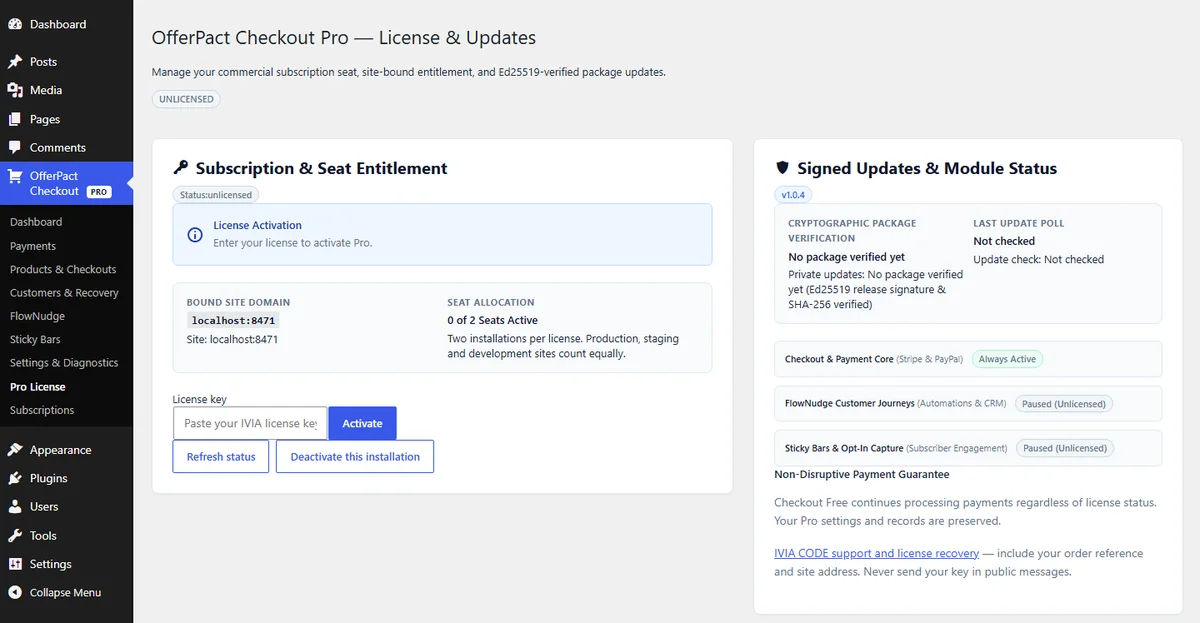
Activation is not automatic: Pro stays unlicensed until you activate a key on this screen. During activation, the plugin sends the license key and your site address to the IVIA CODE license service. The key is not kept on your site after the request; WordPress stores an encrypted site token instead.
6. Check that Pro is active
After a successful activation, the Pro License screen shows:
- the badge PRO ENTITLEMENT ACTIVE at the top;
- the message “License response verified. All OfferPact Checkout Pro modules and signed updates are active for this site.”;
- Seat Allocation: 1 of 2 Seats Active and your Bound Site Domain;
- Subscription Term with your paid-through date;
- Entitled & Active next to FlowNudge Customer Journeys and Sticky Bars.
The OfferPact Checkout admin menu now carries a PRO label and includes FlowNudge, Sticky Bars, Pro License and Subscriptions.
What the two-site license means
One license can be active on two WordPress installations at the same time. Production, staging and development sites each count as one installation. To move Pro to another site, first click Deactivate this installation on the Pro License screen of the old site, then activate the key on the new site. Deactivating the Pro plugin in Plugins also releases its seat; activate the key again when you turn it back on. More details: Pro License & Updates.
How updates arrive
While your license is active, new Pro versions appear in Dashboard → Updates and on the Plugins screen like any other plugin update. Every package is signed by IVIA CODE, and the plugin verifies the signature before WordPress installs it. Update manually by clicking Update now.
If activation fails
The Pro License screen explains the reason. The most common messages are:
| Message | What to do |
|---|---|
| The key was not accepted. Check the key from your purchase email. | Copy the key again from the email, without spaces before or after it. |
| Both installations are in use. Deactivate another site, then activate here. | Deactivate the license on one of your other sites first. |
| License action could not be verified. Check the key, connectivity and trust configuration, then retry. | Make sure your host allows outbound HTTPS to license.iviacode.com, then retry. |
| Please wait before trying again. | Too many attempts in a short time. Wait a few minutes. |
| The site address changed. Deactivate the old installation and activate this address. | The site URL differs from the one the seat was activated for. |
More fixes are in Pro Troubleshooting.
Next steps
Support
Email support@iviacode.com from the address you used for the purchase, or use the contact form and say that your request concerns OfferPact Checkout Pro. Include your order reference, purchase date and site address. Never send your license key, passwords or card details in public forums.
IVIA CODE newsletter
Stay up to date with new OfferPact features and advanced WordPress checkout techniques
Occasional emails about new OfferPact features, practical checkout tips and conversion ideas for WordPress businesses.